Top 10 điểm đến lý tưởng nhất để đi du lịch gia đình mùa hè
Mùa hè gõ cửa cũng là lúc tiếng ve râm ran gọi mời những chuyến đi. Đối với mỗi người, mùa hè không chỉ là khoảng thời gian nghỉ ngơi



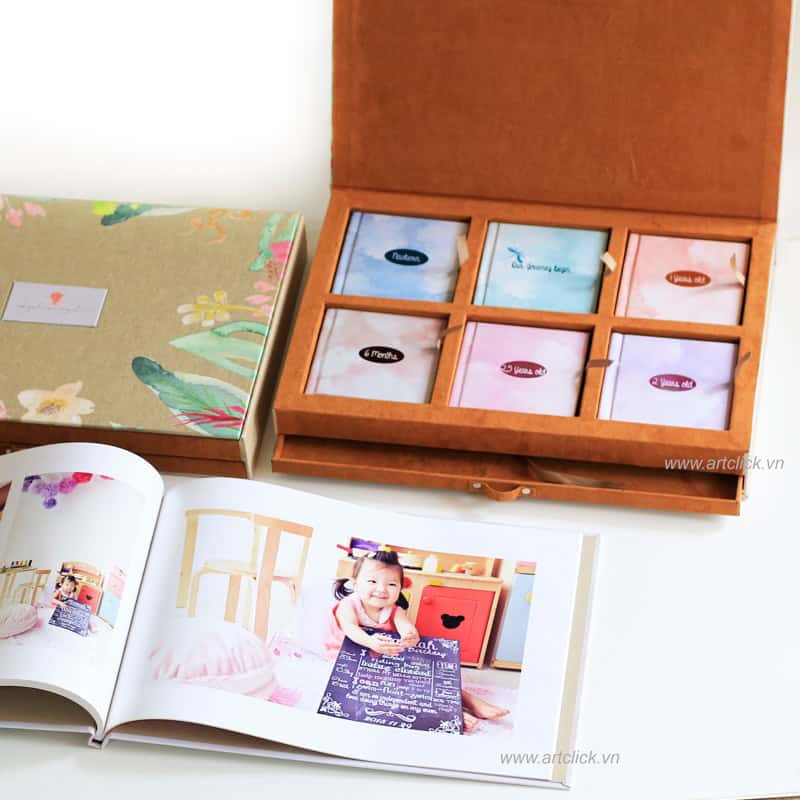
QUICK design guide with baby photo album making software ACBook, designing baby photo albums becomes simpler and faster than ever with the FAST-BOOK function of ACBook free online design software.
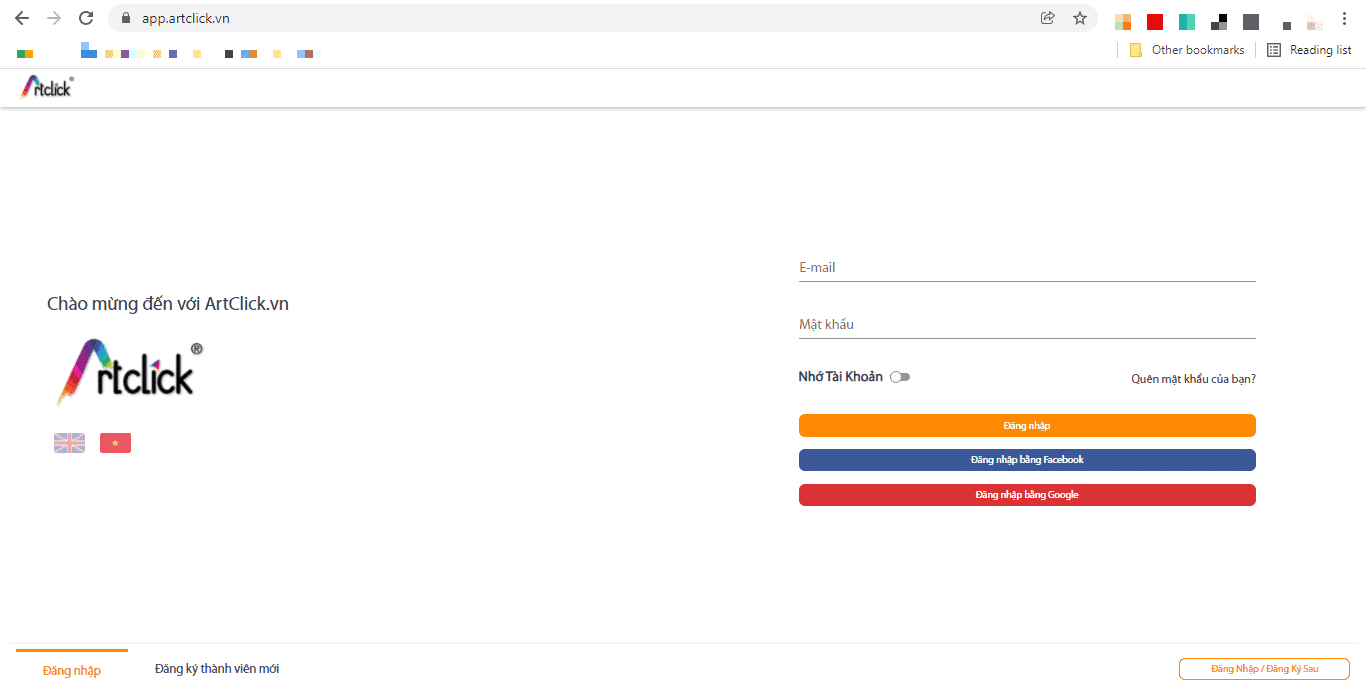
You can register using email, Google account, or Facebook. And no email confirmation required.
Select English/Vietnamese language.
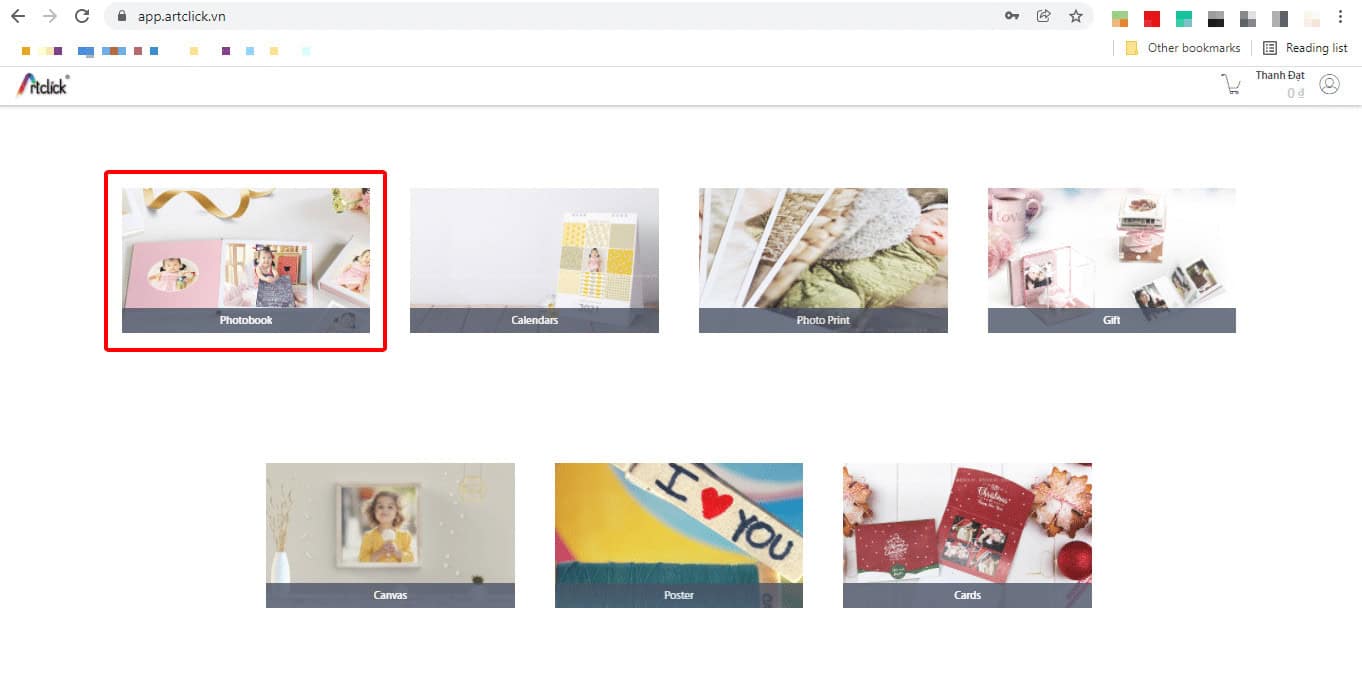
Select “Photobook” to design a photo album for your baby.
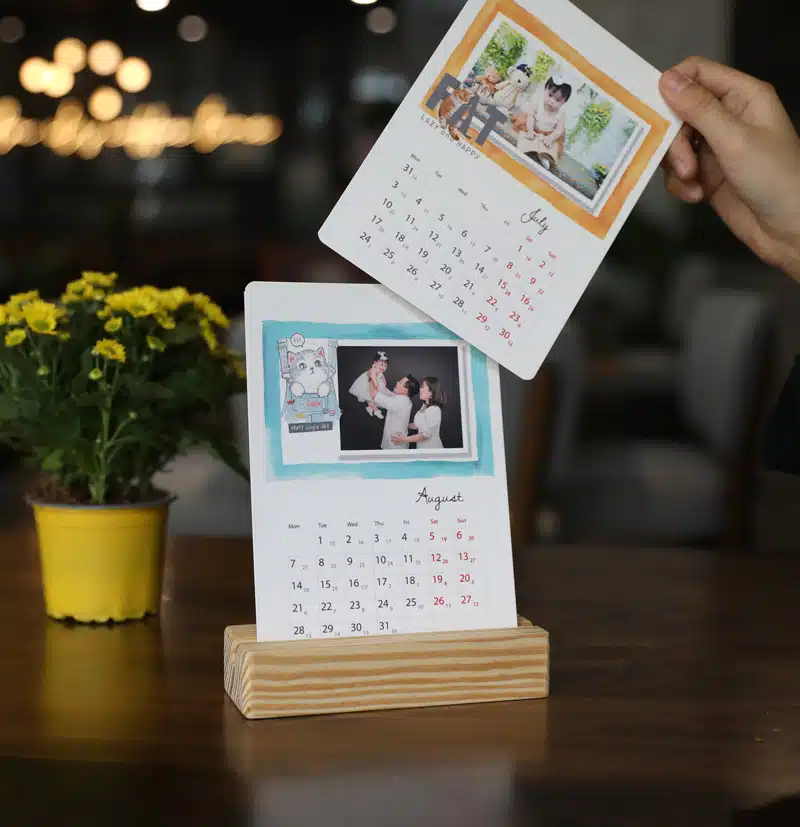
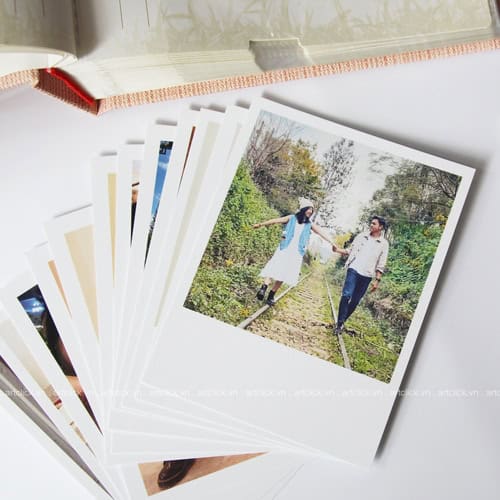
In addition, you can refer to other products at this photo album making software for children such as: personal calendars, individual photo printing, photo gifts, canvas painting printing, wooden photo frame printing, phallic photos, wall photos , card,..
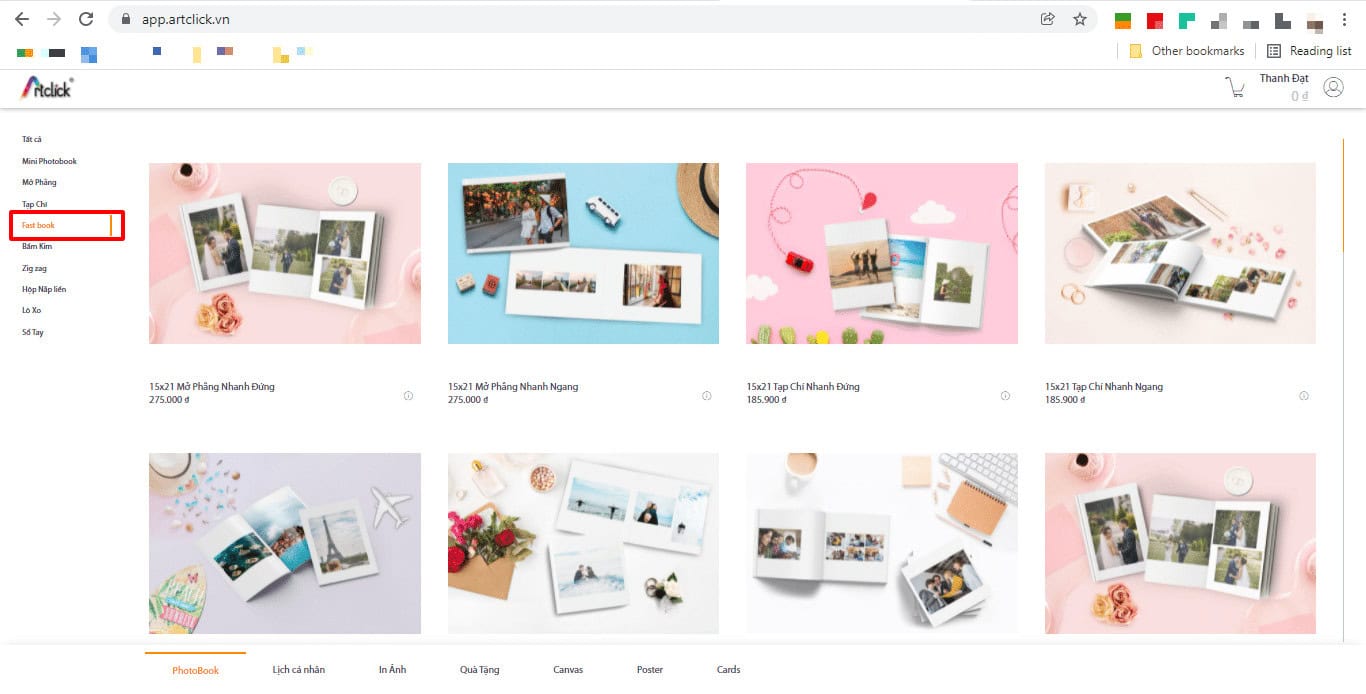
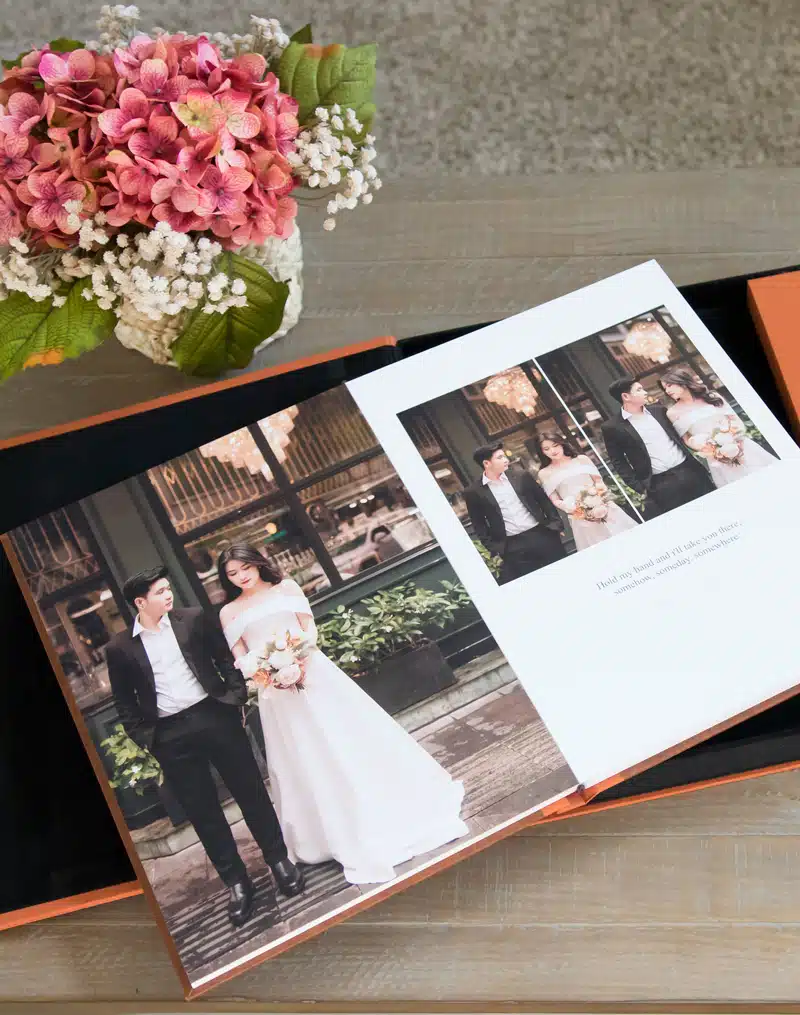
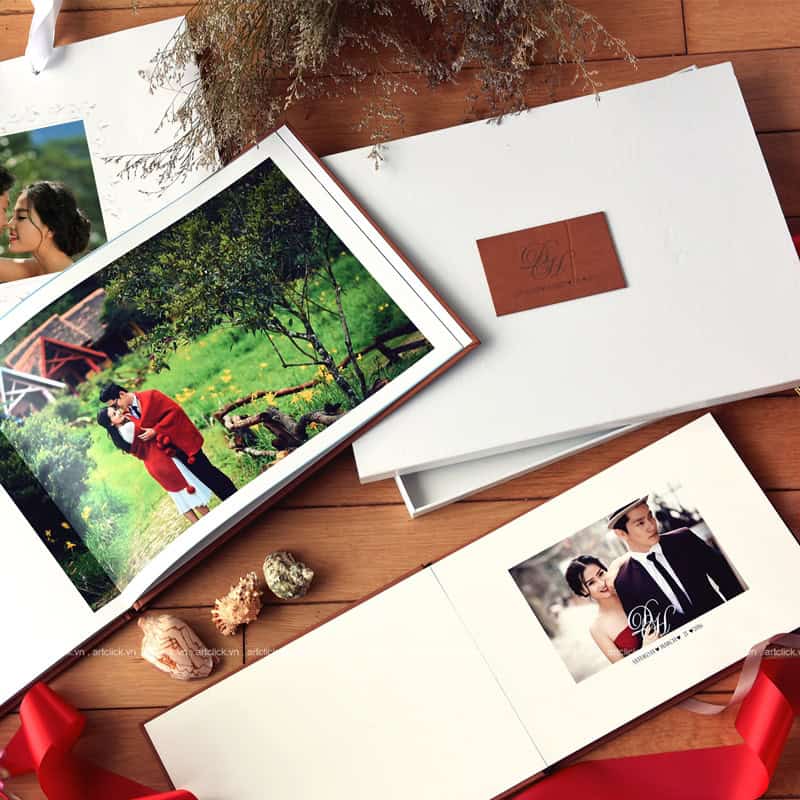
In the next step, you can choose album printing styles such as: flat open, magazine, mini album, etc. and design according to available templates or design manually according to your preferences.
But in this article Artclick introduces you to the "FAST Design" function - automatically laying out pages and layouts for you, you just need to insert images and the software will automatically design the layout for you (instead of having to manually insert each image into the available photo frames). Designing becomes much faster and simpler.
You select "Fastbook" and select the size and type of photobook you want to print on the right side.
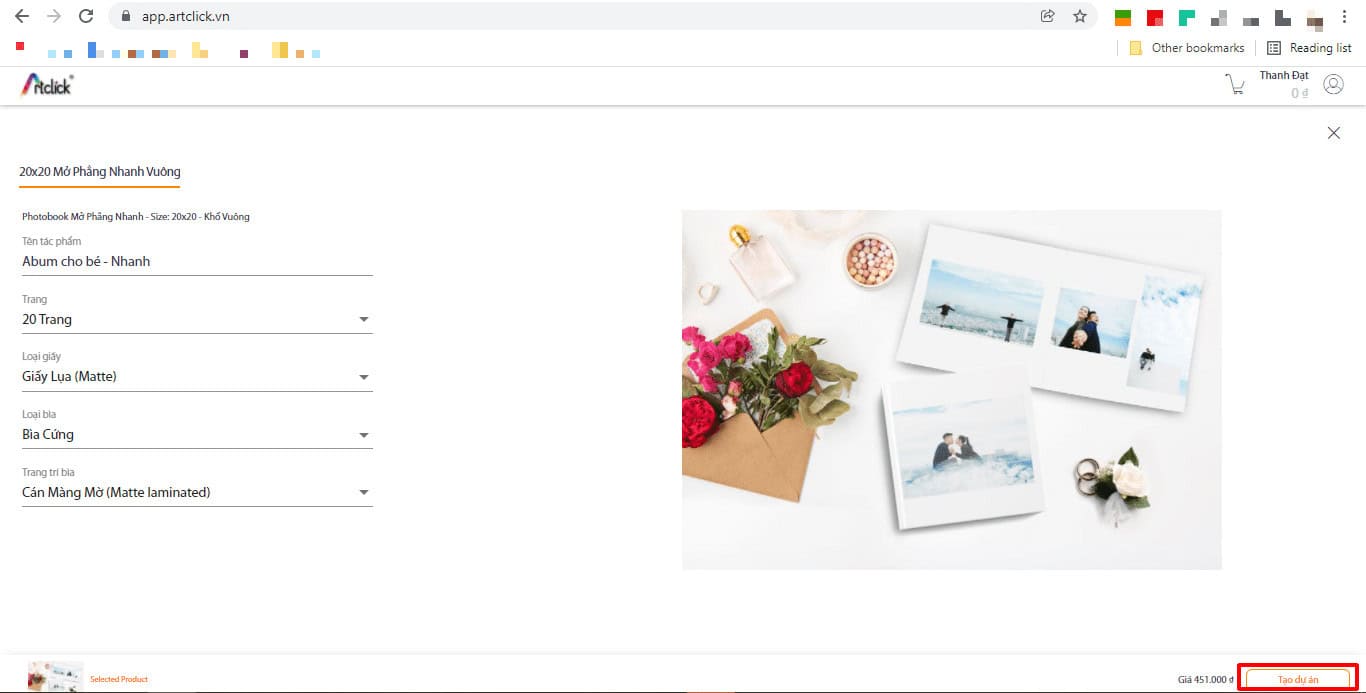
Naming the work - this is just a way for you to distinguish design works from each other, does not affect the printed product.
Adjust printing specifications accordingly such as number of pages, paper type, cover type, cover decoration style. If you still have concerns, you can contact Artclick for advice details.
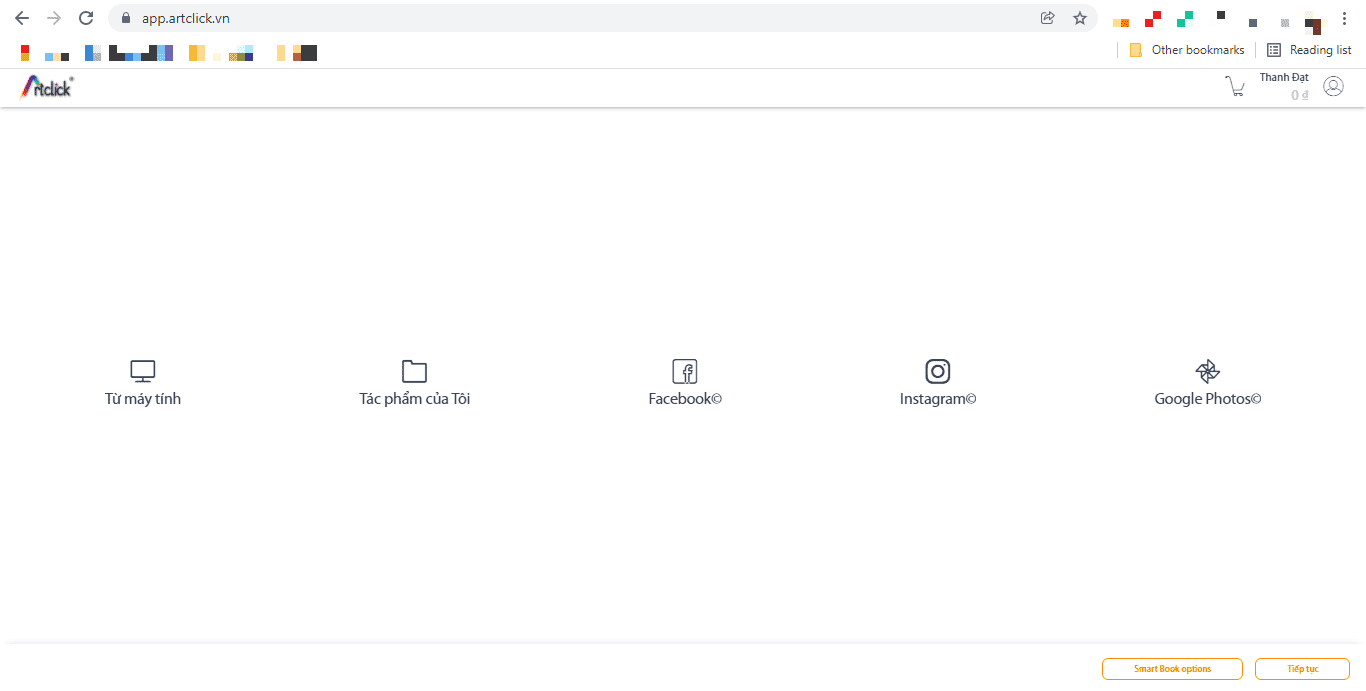
There are many options for downloading photos: from your computer, old works, Facebook, Instagram and Google Photo.
Next, you can still upload photos if you want to add more photos at this step.
Smart Book options: allows you to customize image layout options for pages, such as: distance between images, number of images in one page, image layout, etc.
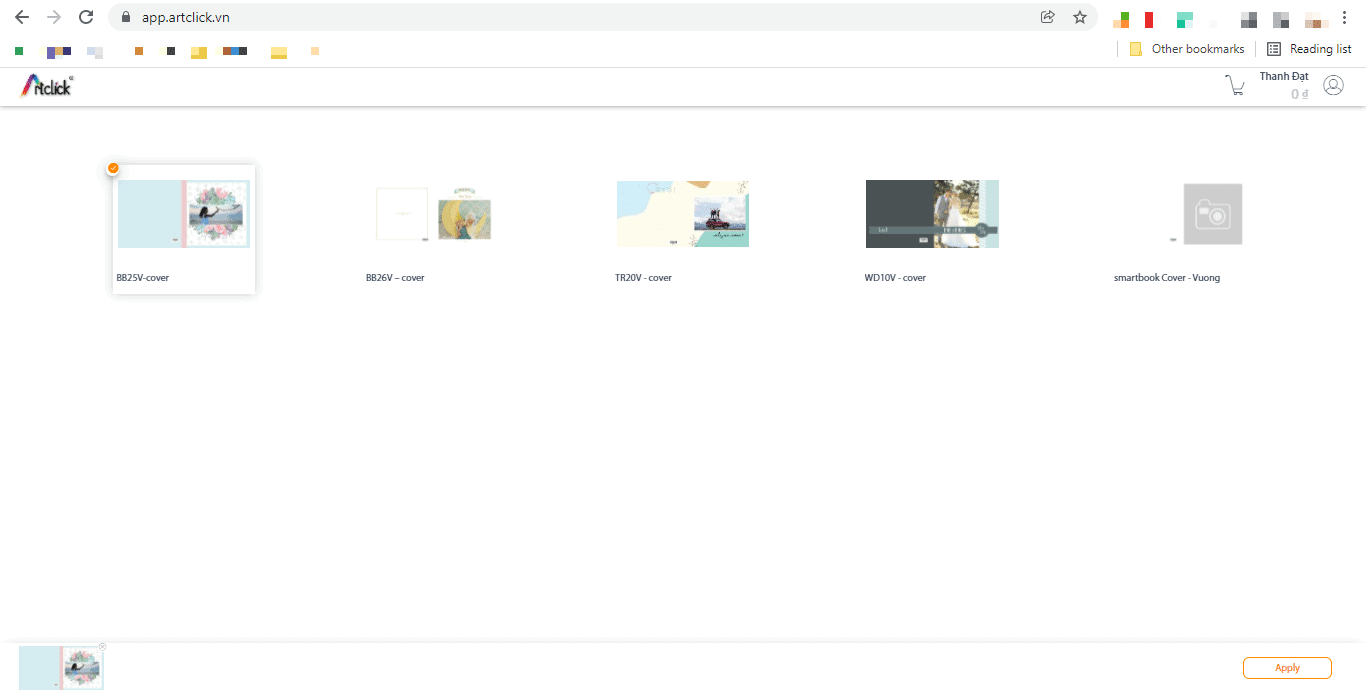
Choose a cover model you like, or "smartbook cover - Square" if you want to design your own cover image.
After choosing a cover template, you only need to wait about 30 seconds - 1 minute for the software to automatically lay out the page and layout for you.
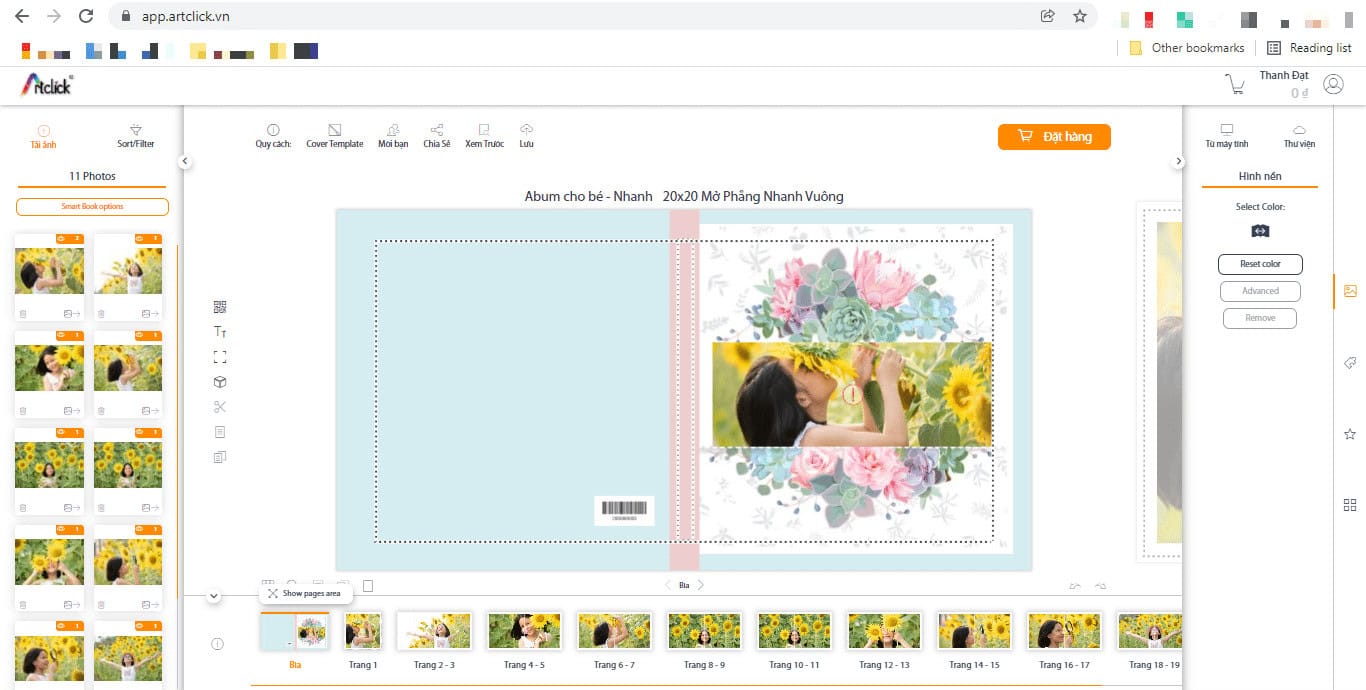
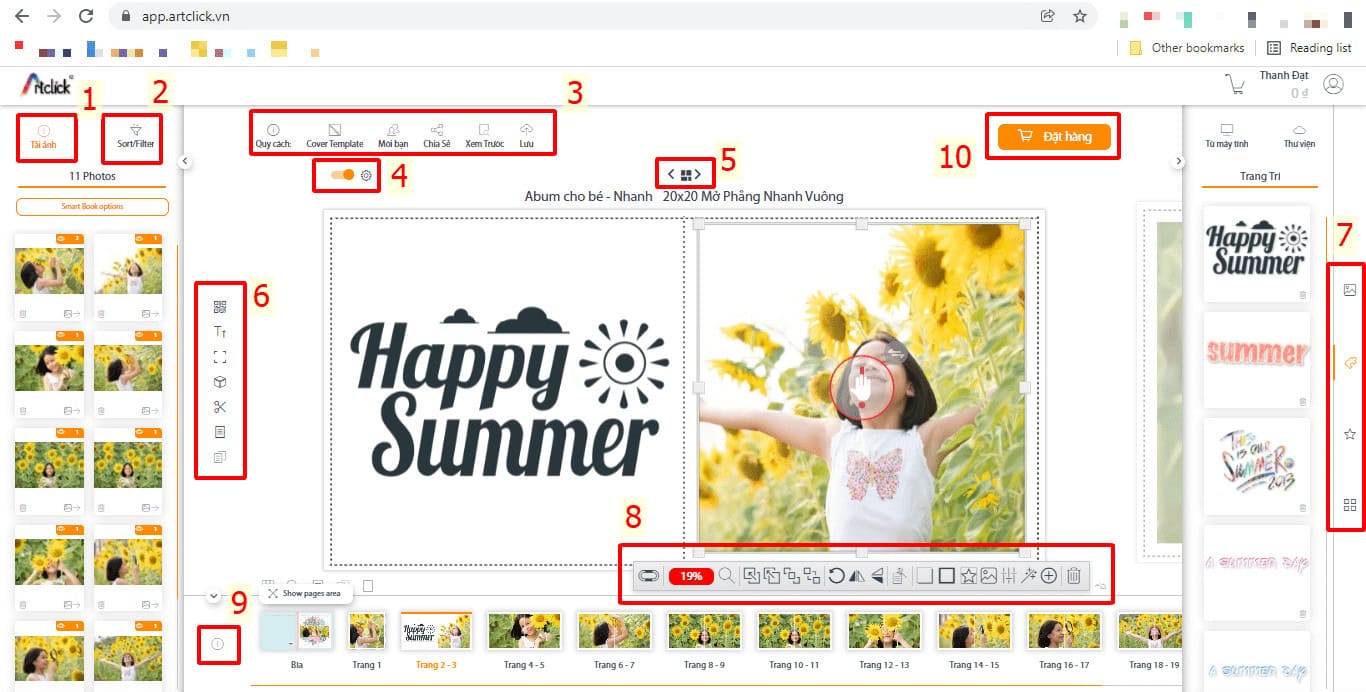
Edit the cover to your liking.
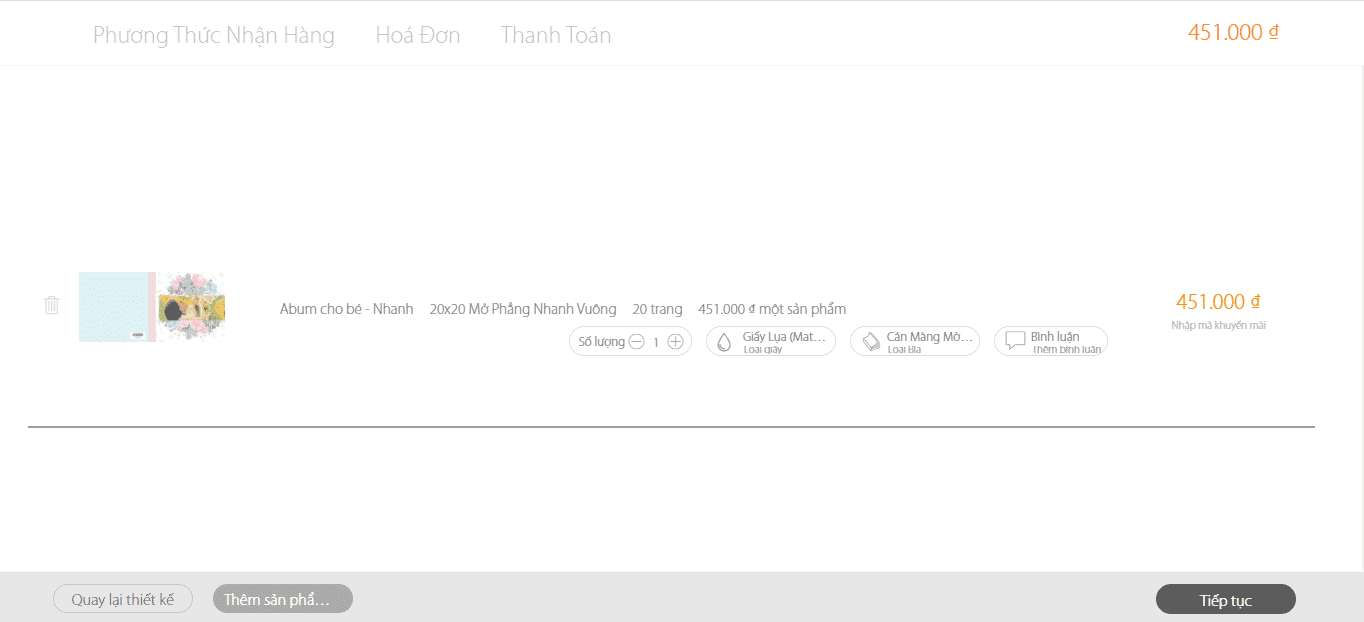
At this step you can adjust the paper type, cover type, number of albums, printing notes and add promotional codes (if any).
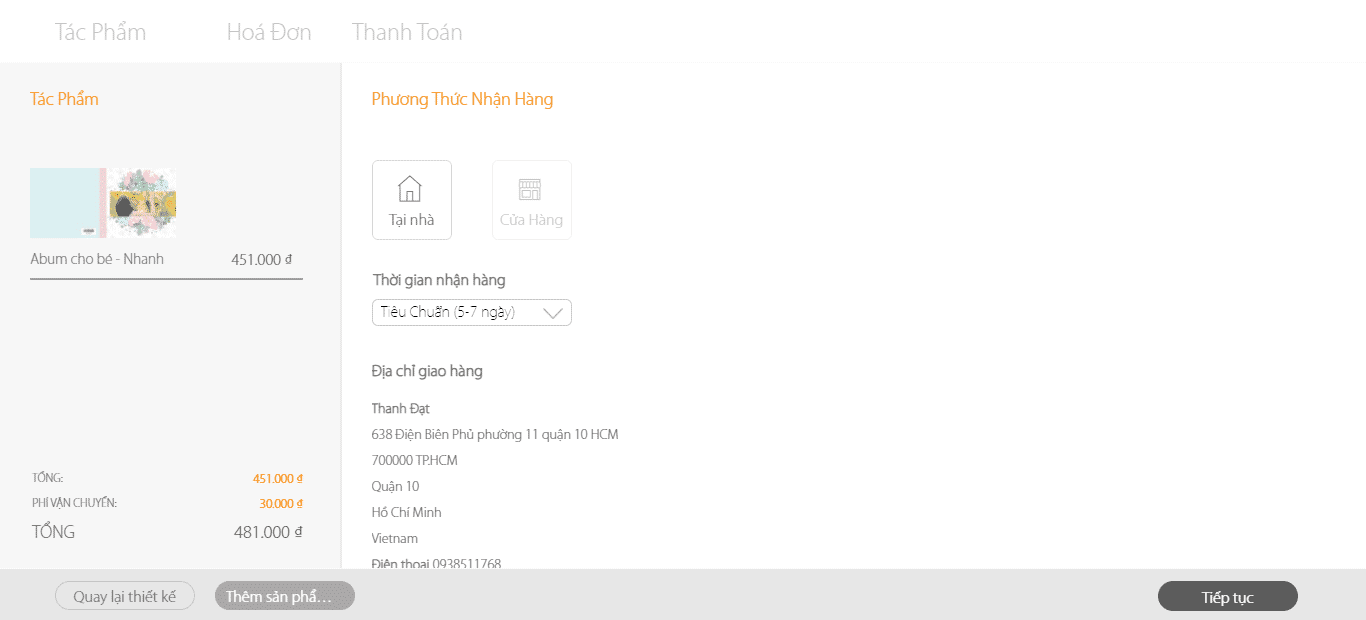
Choose delivery or pick up in store.
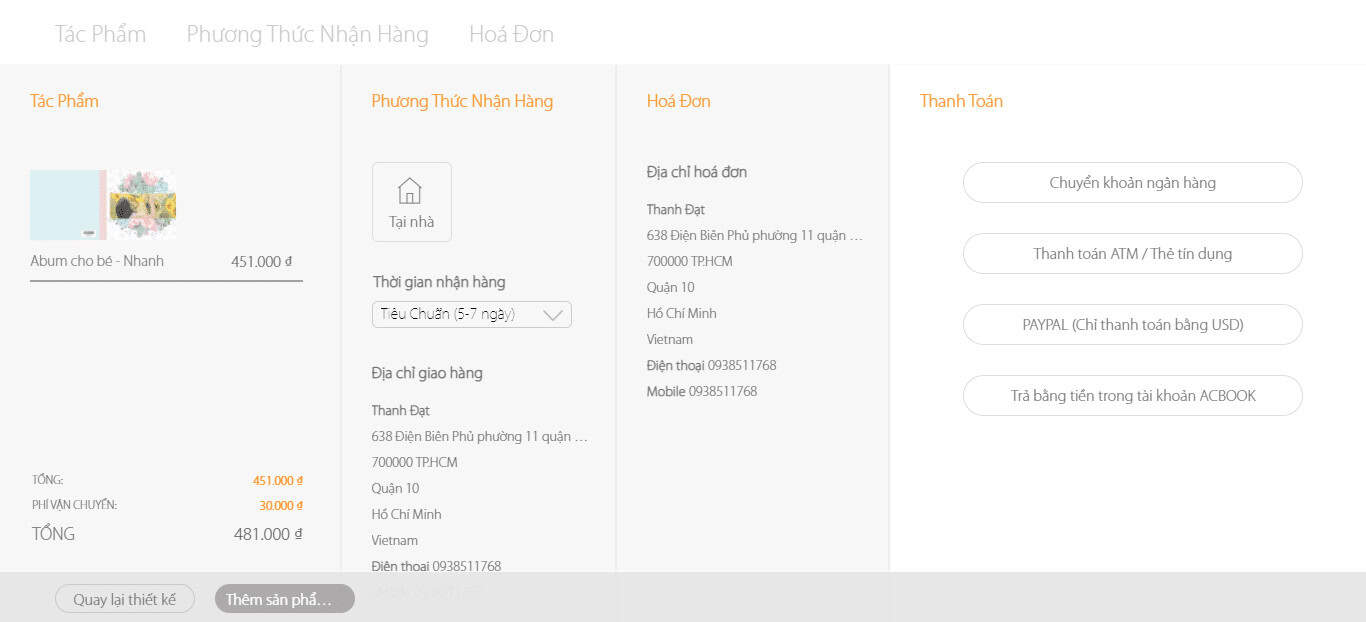
Select payment method.
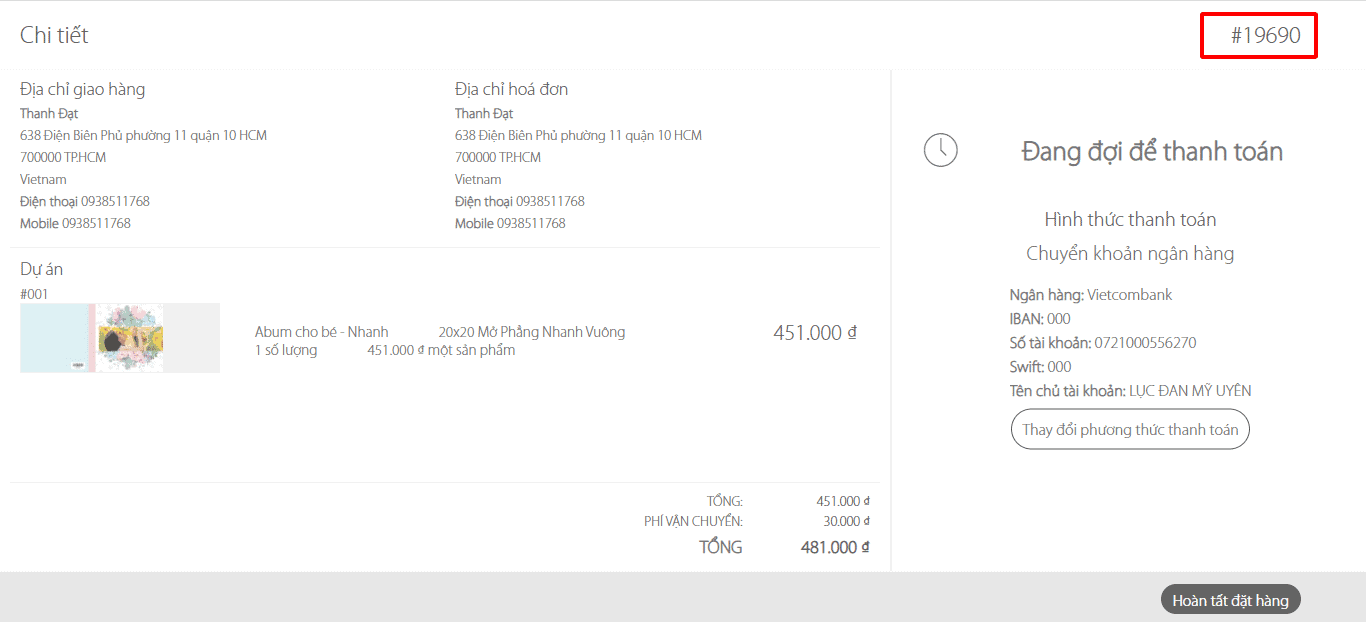
In the right corner of the screen is the order code: #19690
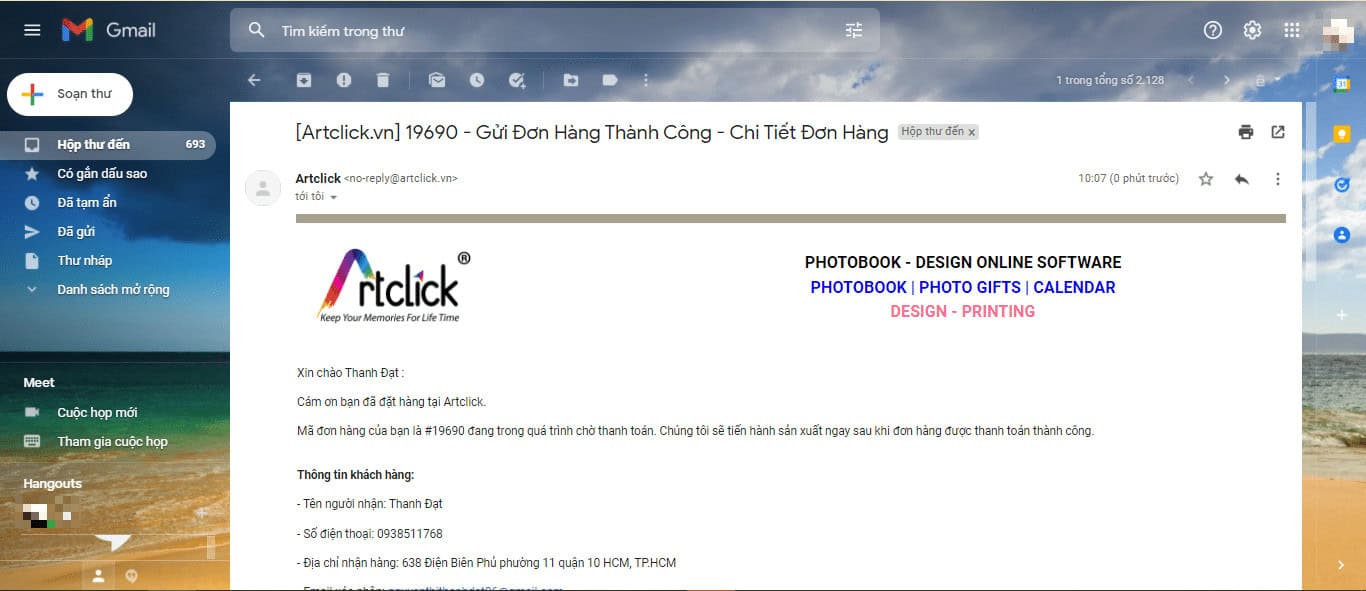
After successfully placing an order, you will have an email automatically sent to your email. After payment, please notify Artclick of your order code so that Artclick can proceed with printing and delivery to you.
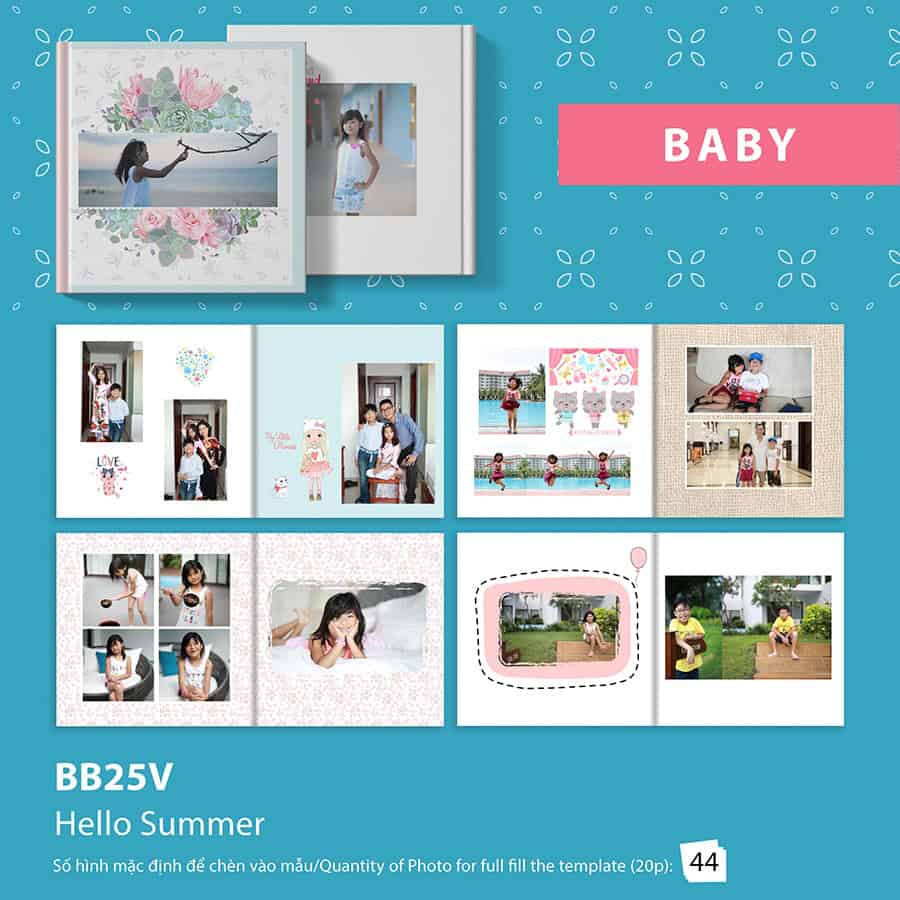
BB25V – See template details
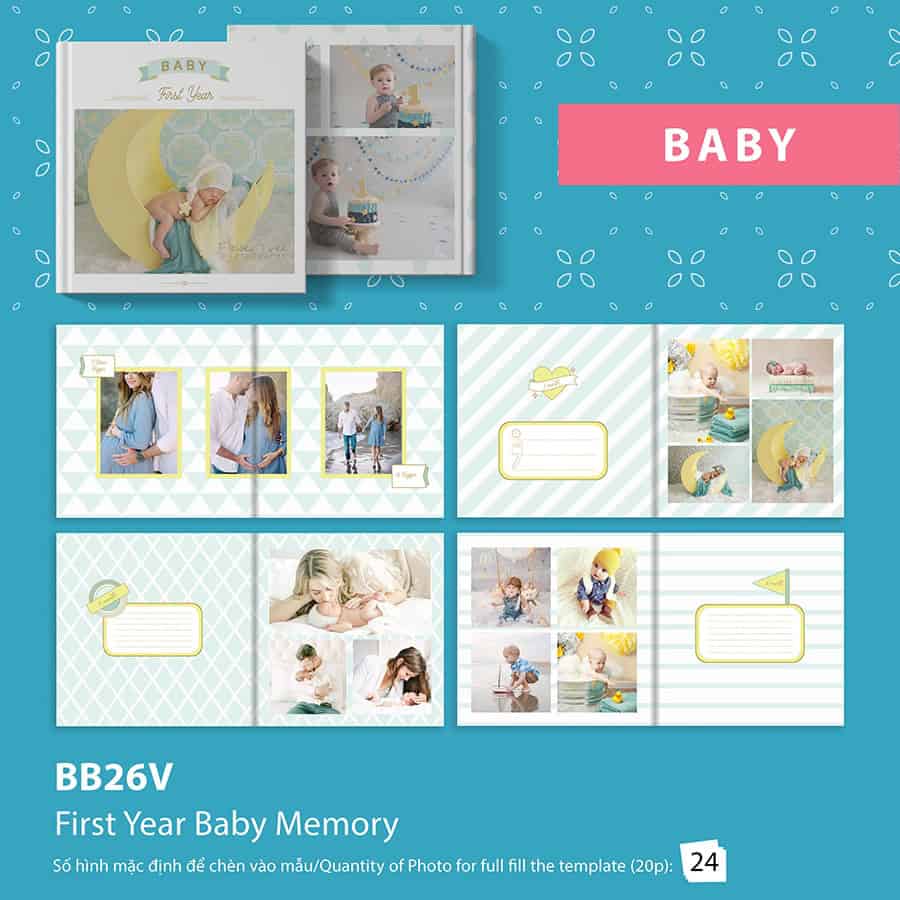
BB26V – See template details
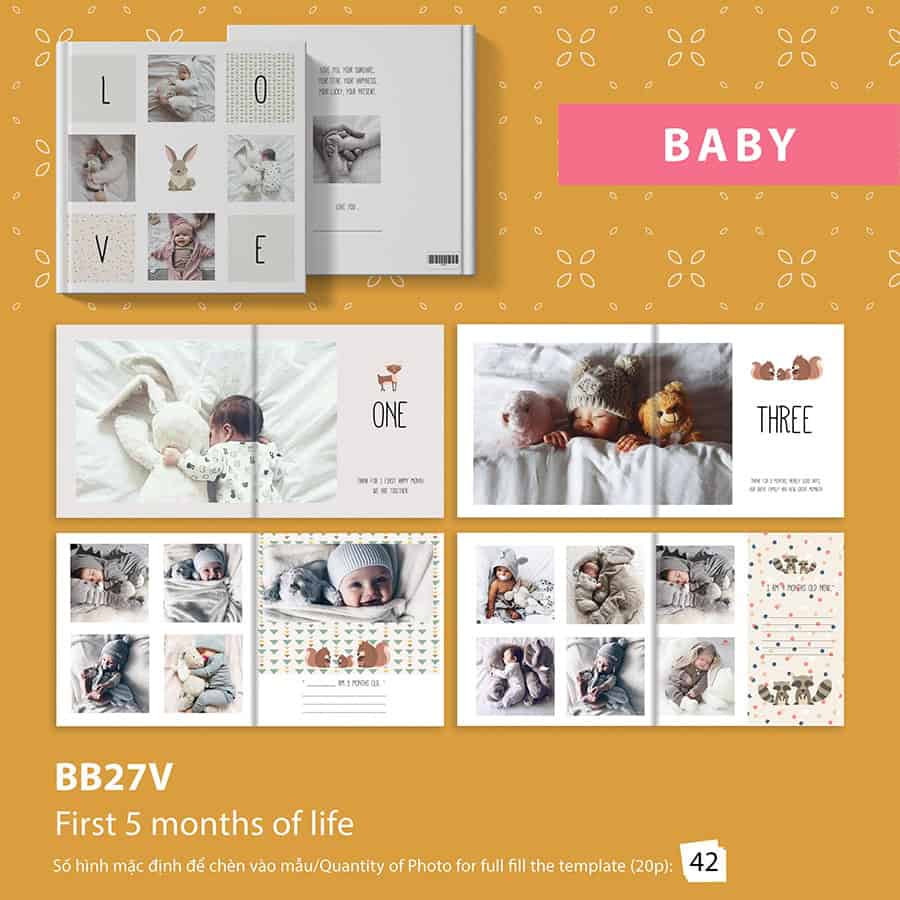
BB27V – See template details
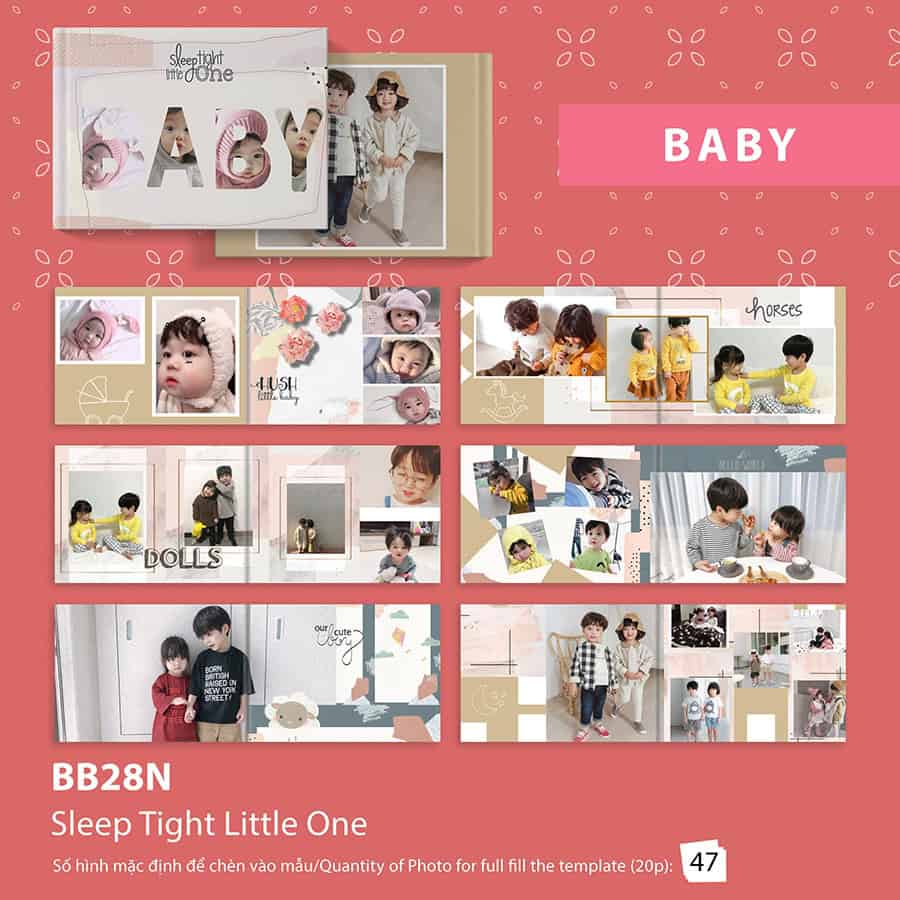
BB28N – See template details
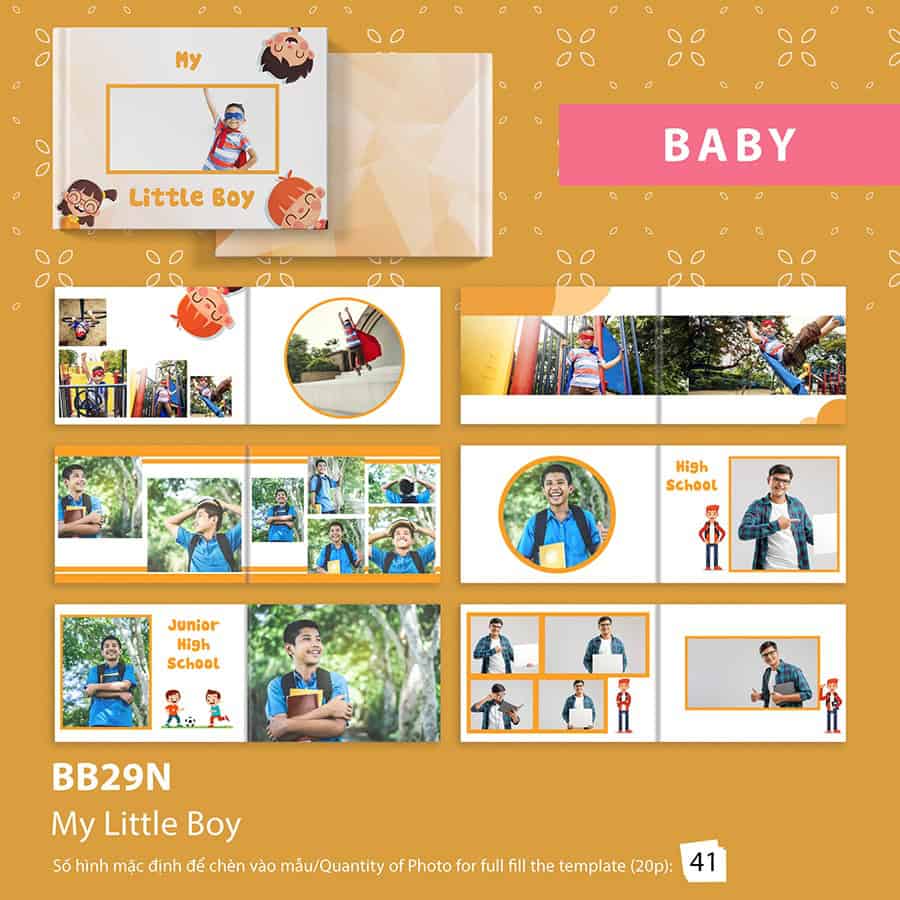
BB29N – See template details
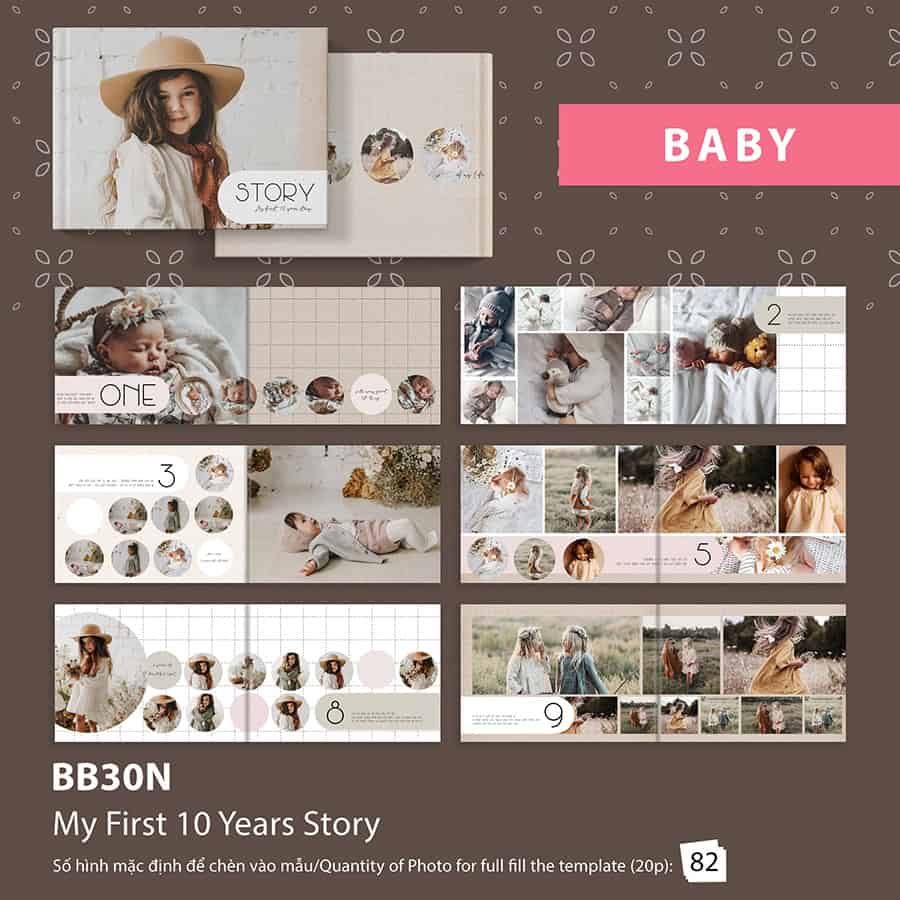
BB30N – See template details
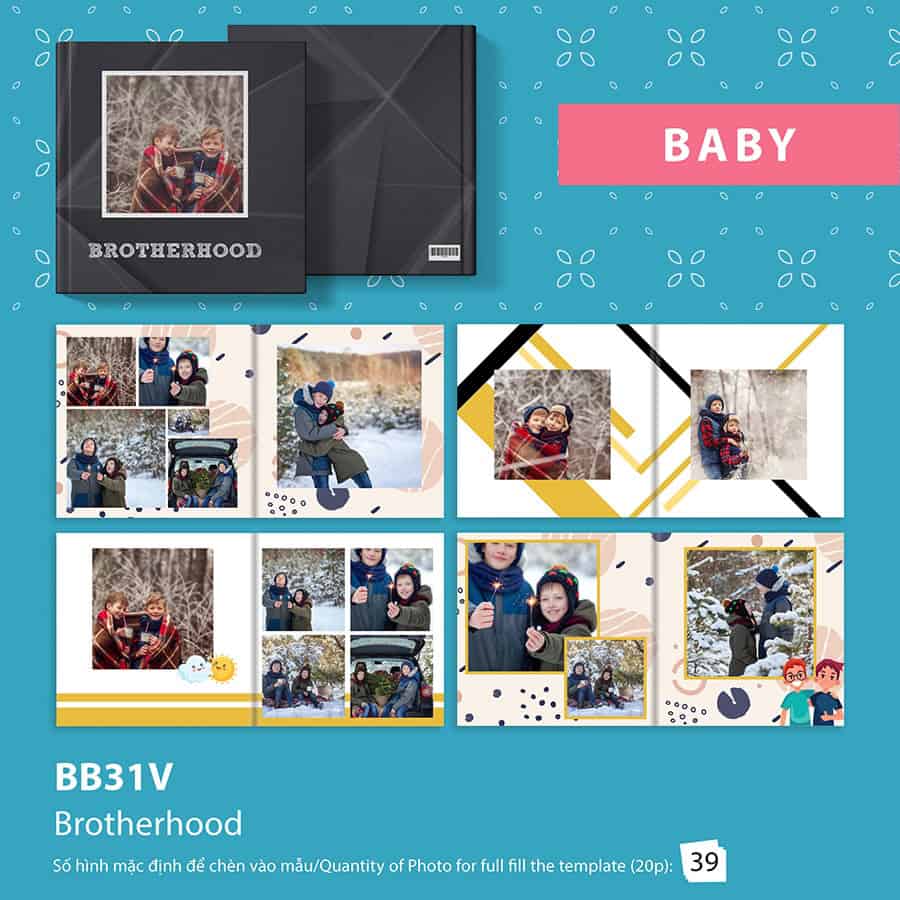
BB31V – See template details
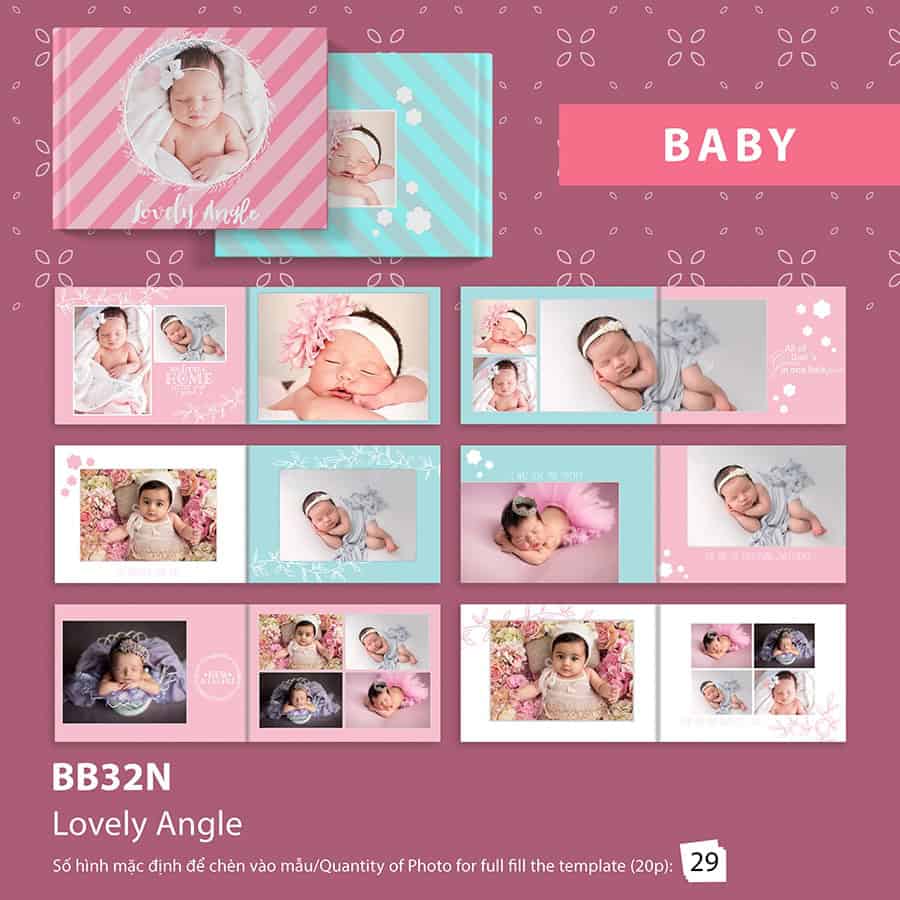
BB32N – See template details
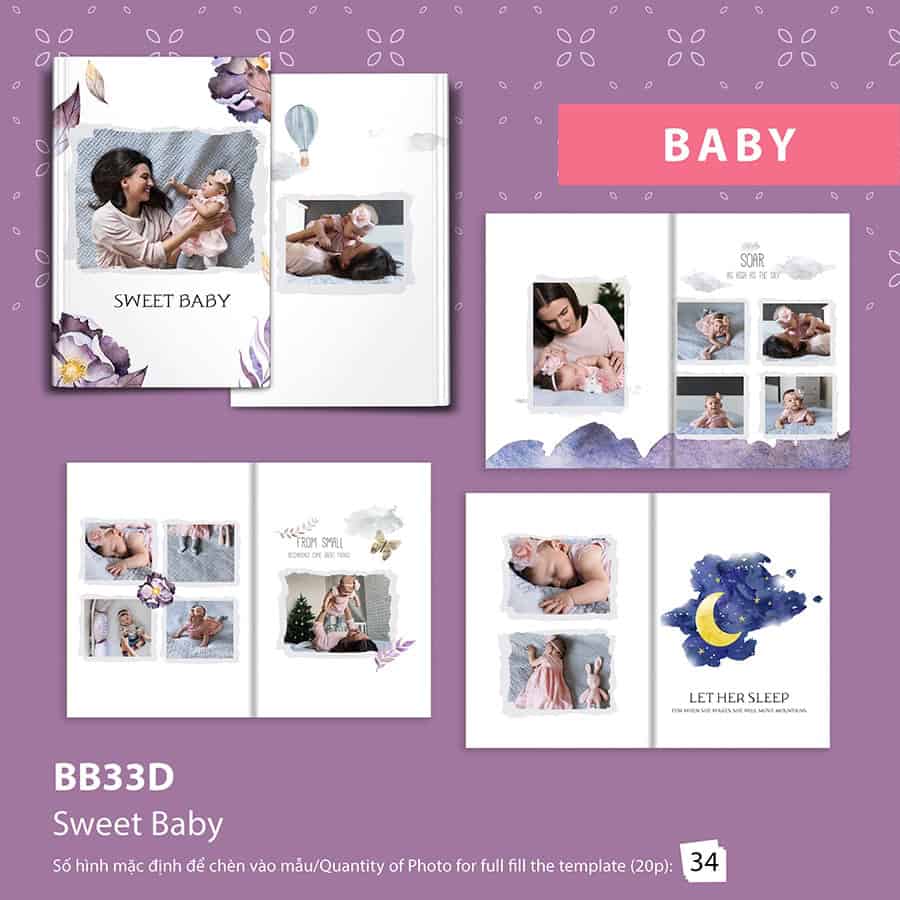
BB33D – See template details
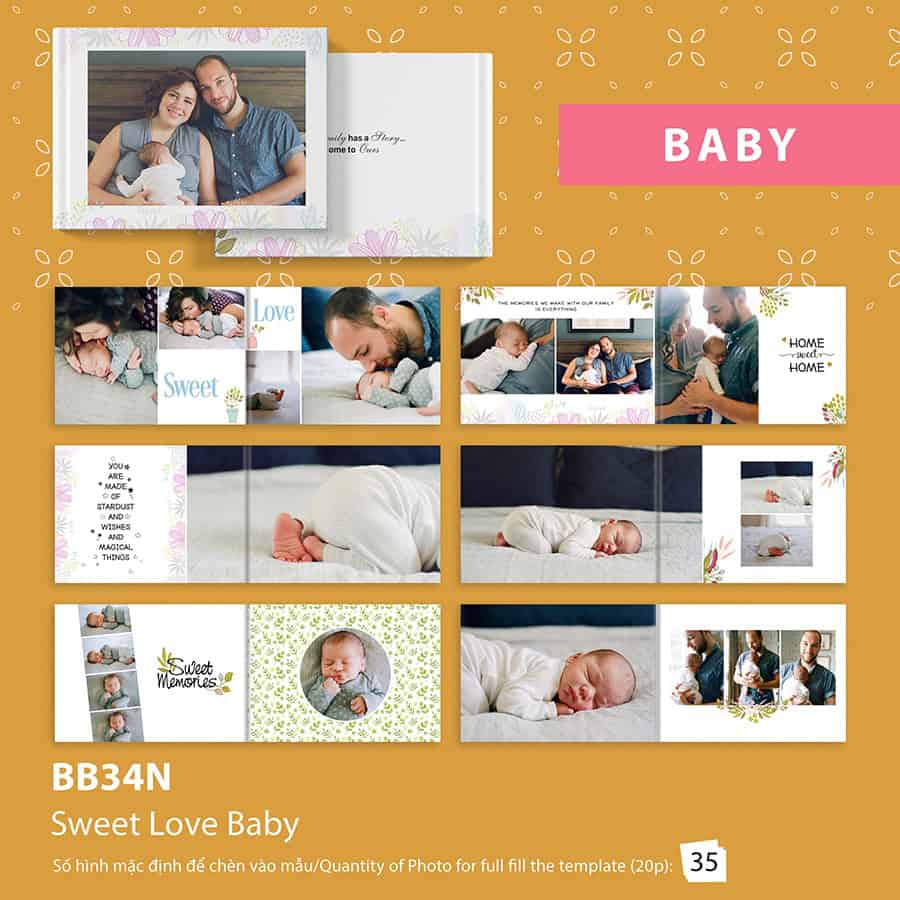
BB34N – See template details
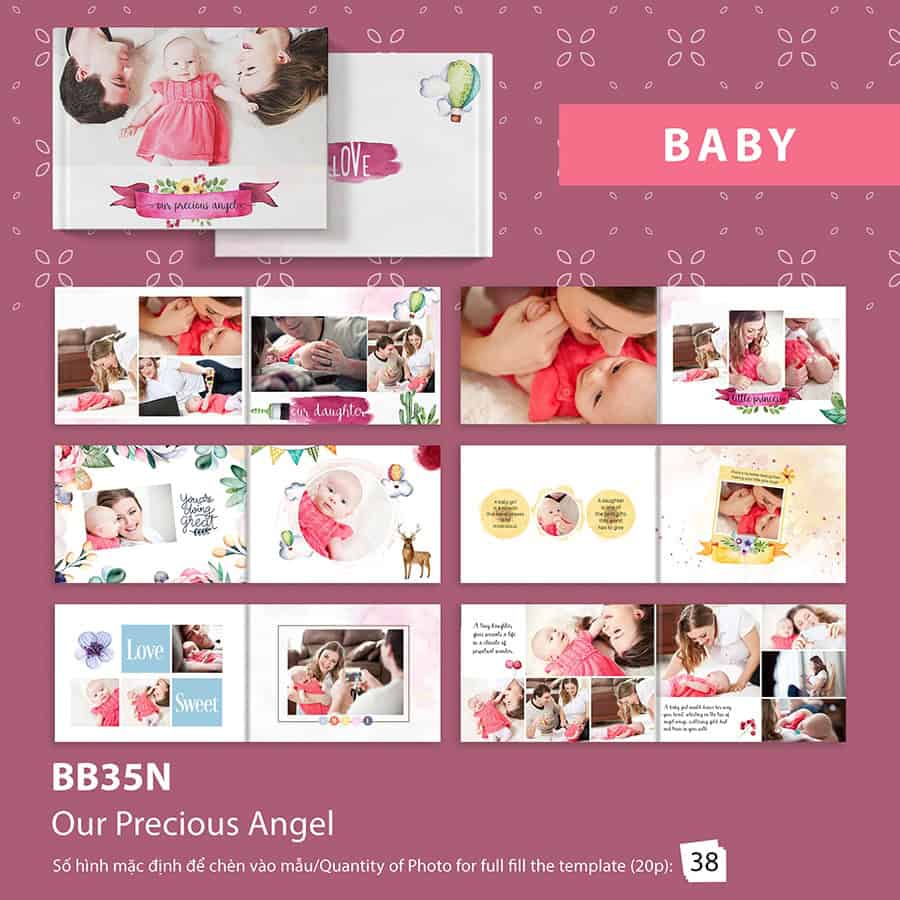
BB35N – See template details
Mùa hè gõ cửa cũng là lúc tiếng ve râm ran gọi mời những chuyến đi. Đối với mỗi người, mùa hè không chỉ là khoảng thời gian nghỉ ngơi
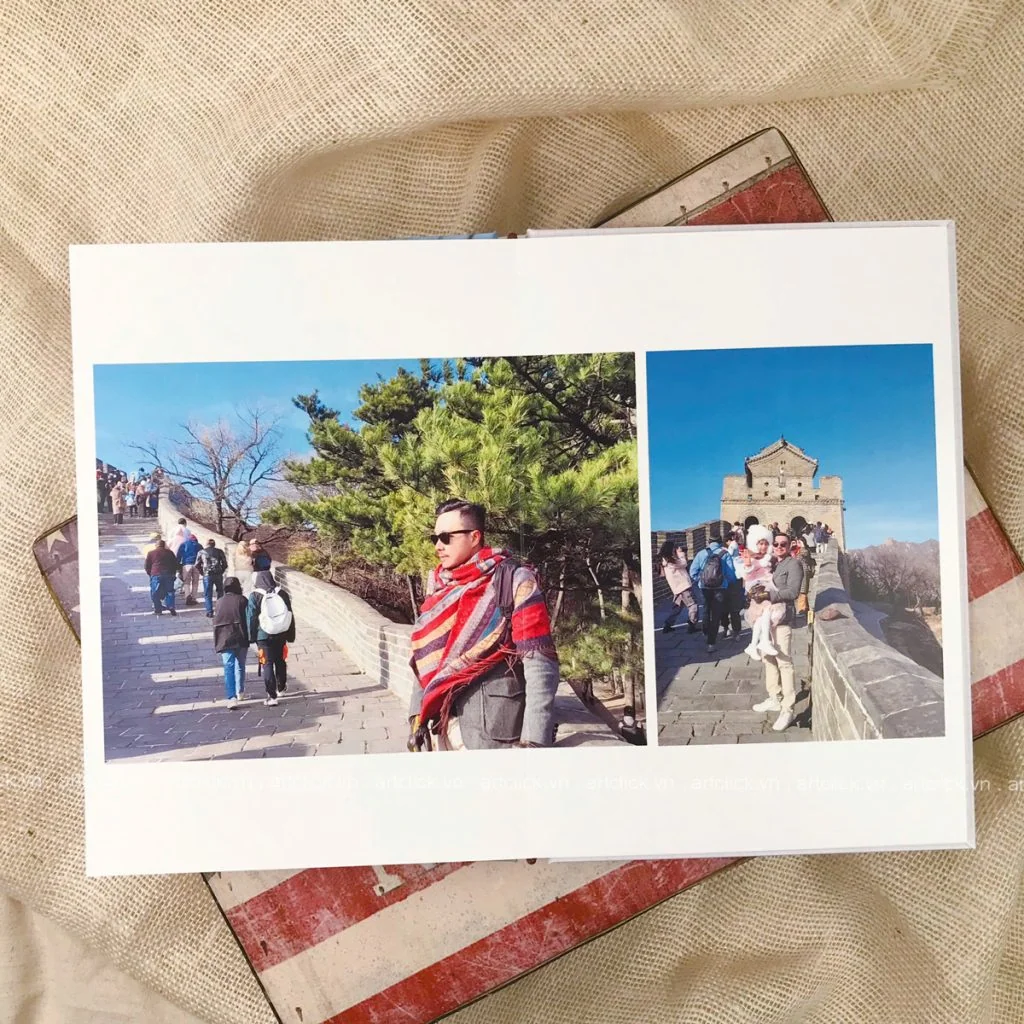
Mỗi chuyến đi xa là một chương mới trong cuốn nhật ký hạnh phúc của tổ ấm. Đó là lúc chúng ta tạm gác lại những bộ đồng phục công
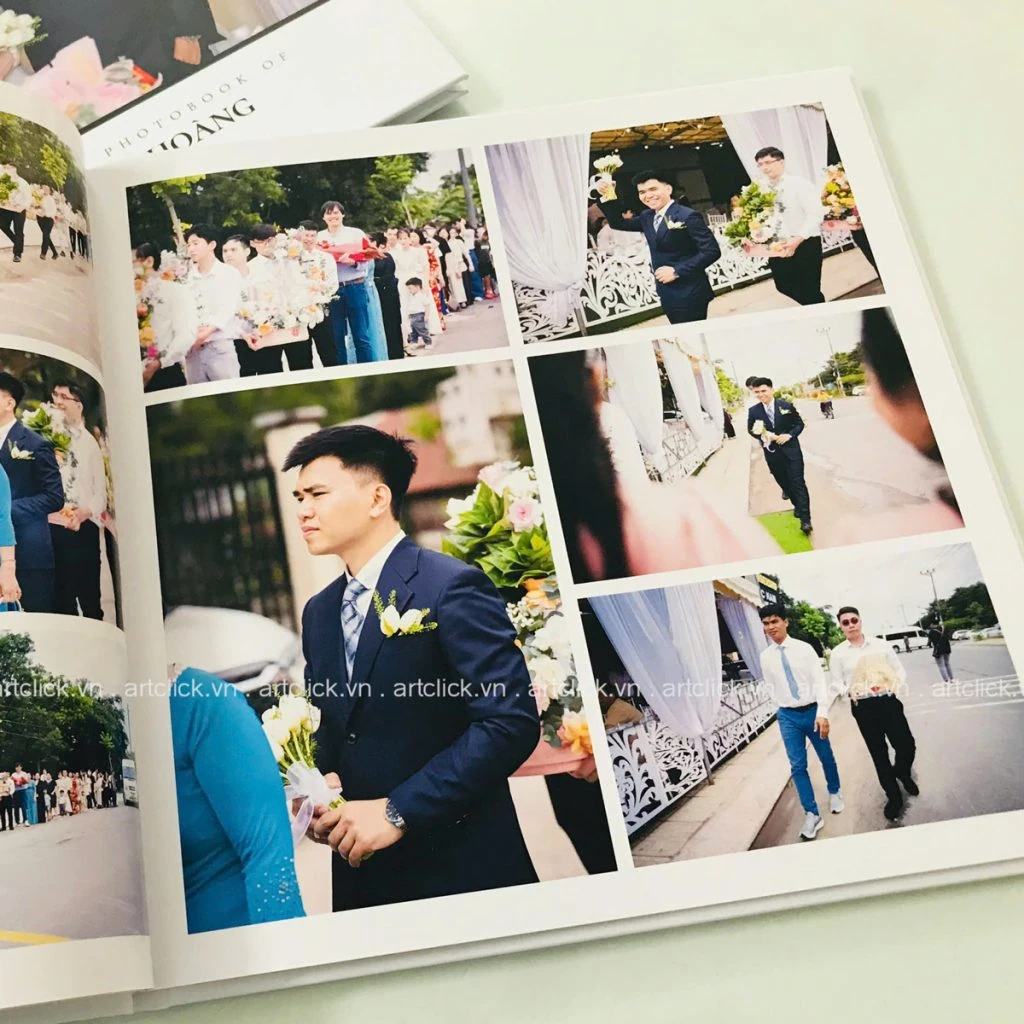
Ngày cưới là một trong những sự kiện trọng đại nhất của cuộc đời, nơi mỗi giây phút trôi qua đều mang theo những giá trị cảm xúc khó có
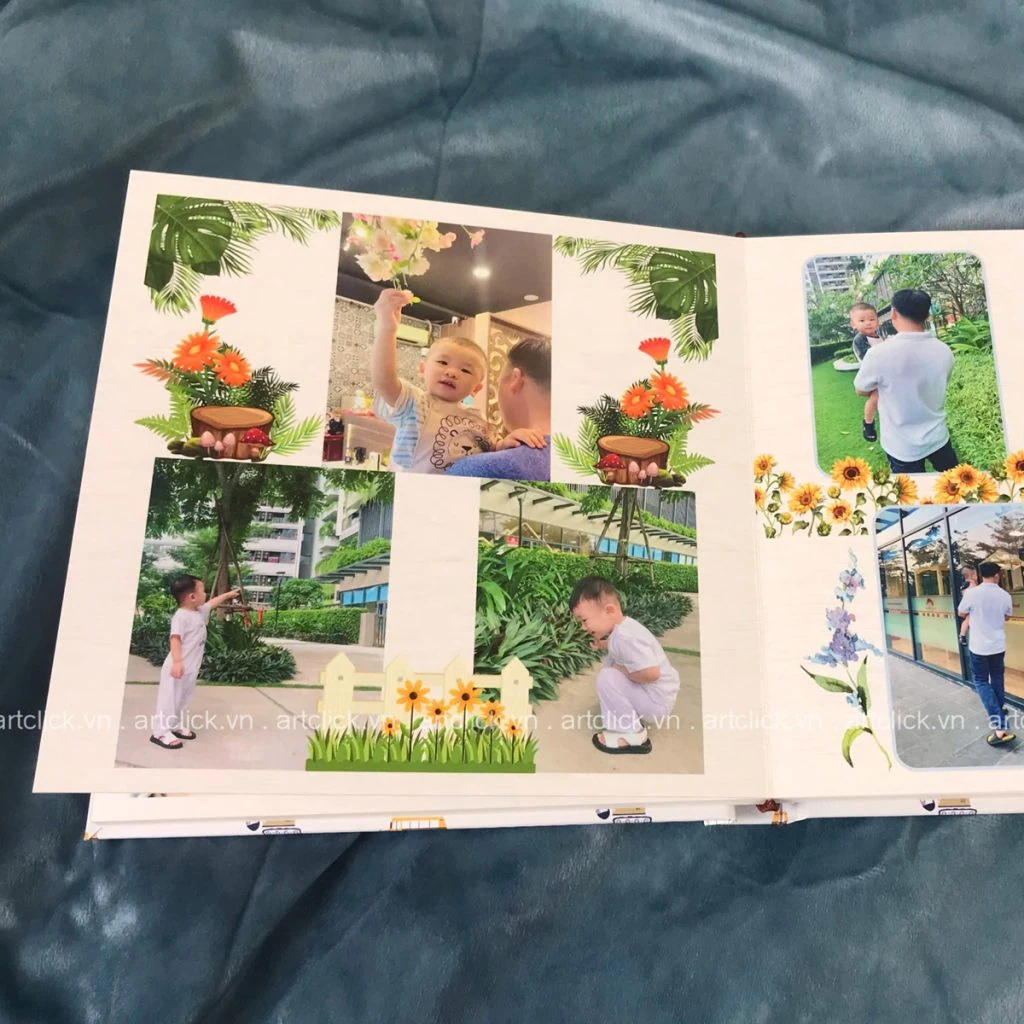
Khi thiên thần nhỏ bước vào tuổi lên 2, đây là giai đoạn vô cùng thú vị nhưng cũng đầy thử thách đối với các bậc cha mẹ. Ở độ
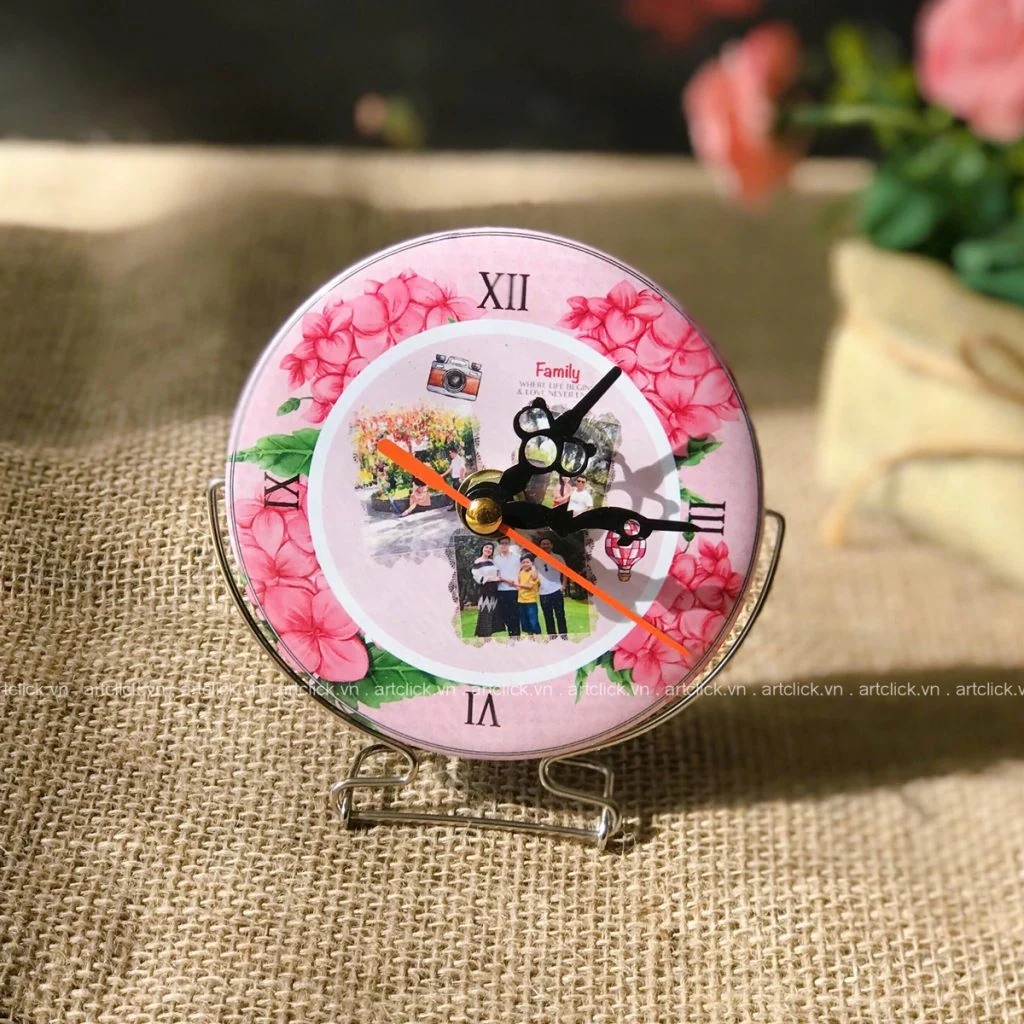
Sinh nhật luôn là dịp đặc biệt để chúng ta thắt chặt tình cảm với những người thân yêu. Giữa hàng ngàn lựa chọn quà tặng từ mỹ phẩm, thời
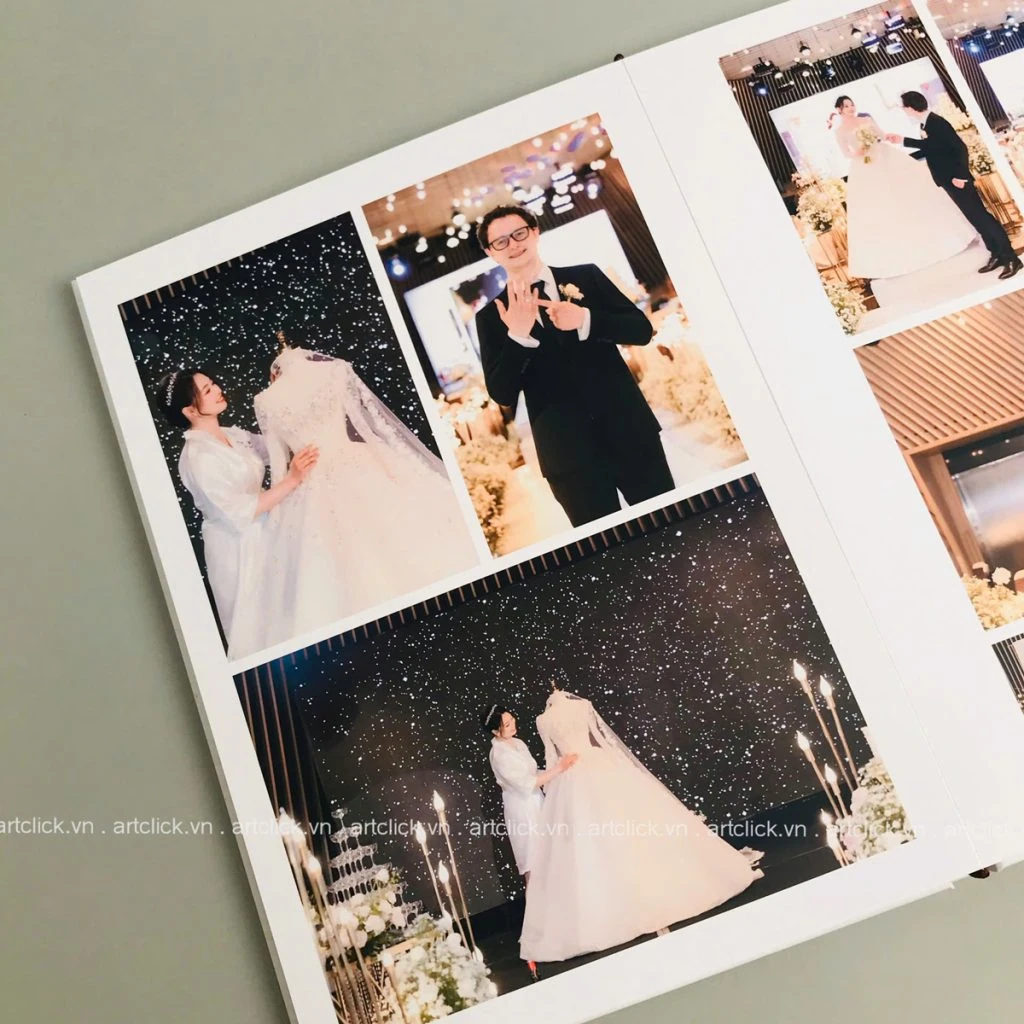
Ngày cưới là mốc son chói lọi nhất trong hành trình yêu thương của mỗi cặp đôi. Khác với phong cách chụp ảnh truyền thống vốn chú trọng vào sự
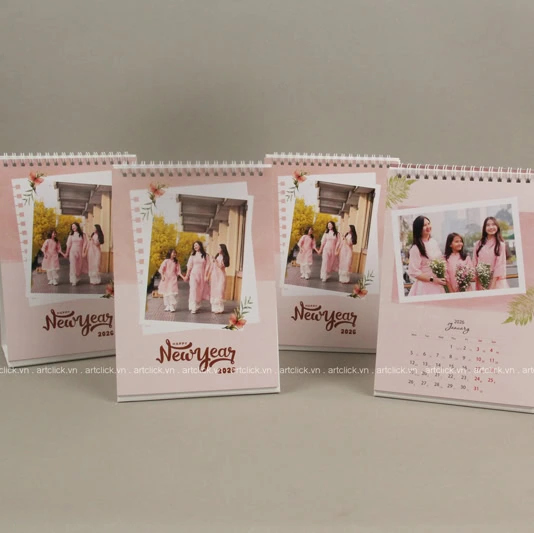
Trong guồng quay hối hả của công việc và cuộc sống hiện đại, bàn làm việc không chỉ là nơi giải quyết các sổ sách, giấy tờ hay thực hiện
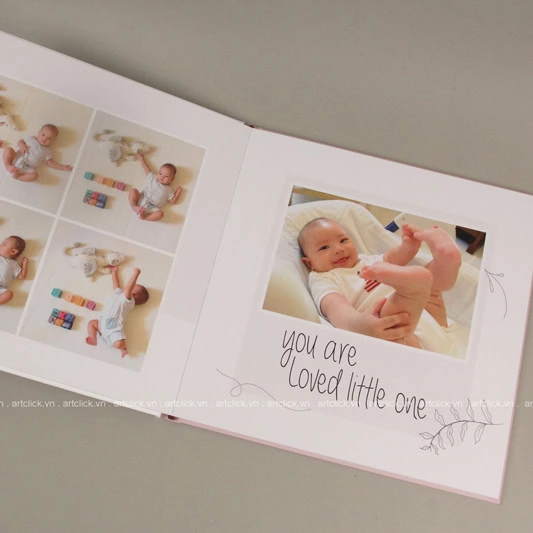
Khoảnh khắc một thiên thần nhỏ chào đời và lớn lên từng ngày là hành trình kỳ diệu nhất mà bất kỳ bậc làm cha làm mẹ nào cũng muốn
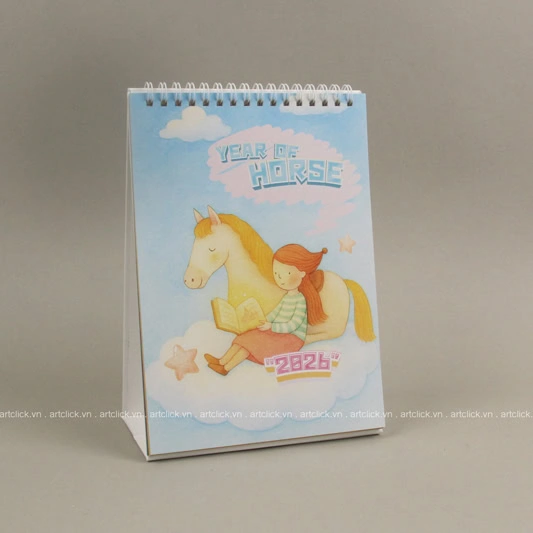
Mỗi dịp cuối năm, thị trường quà tặng và vật phẩm trang trí lại trở nên nhộn nhịp hơn bao giờ hết. Trong số đó, lịch để bàn luôn là